


Bluetooth Headphones Not Connecting: কারণ ও দ্রুত সমাধান
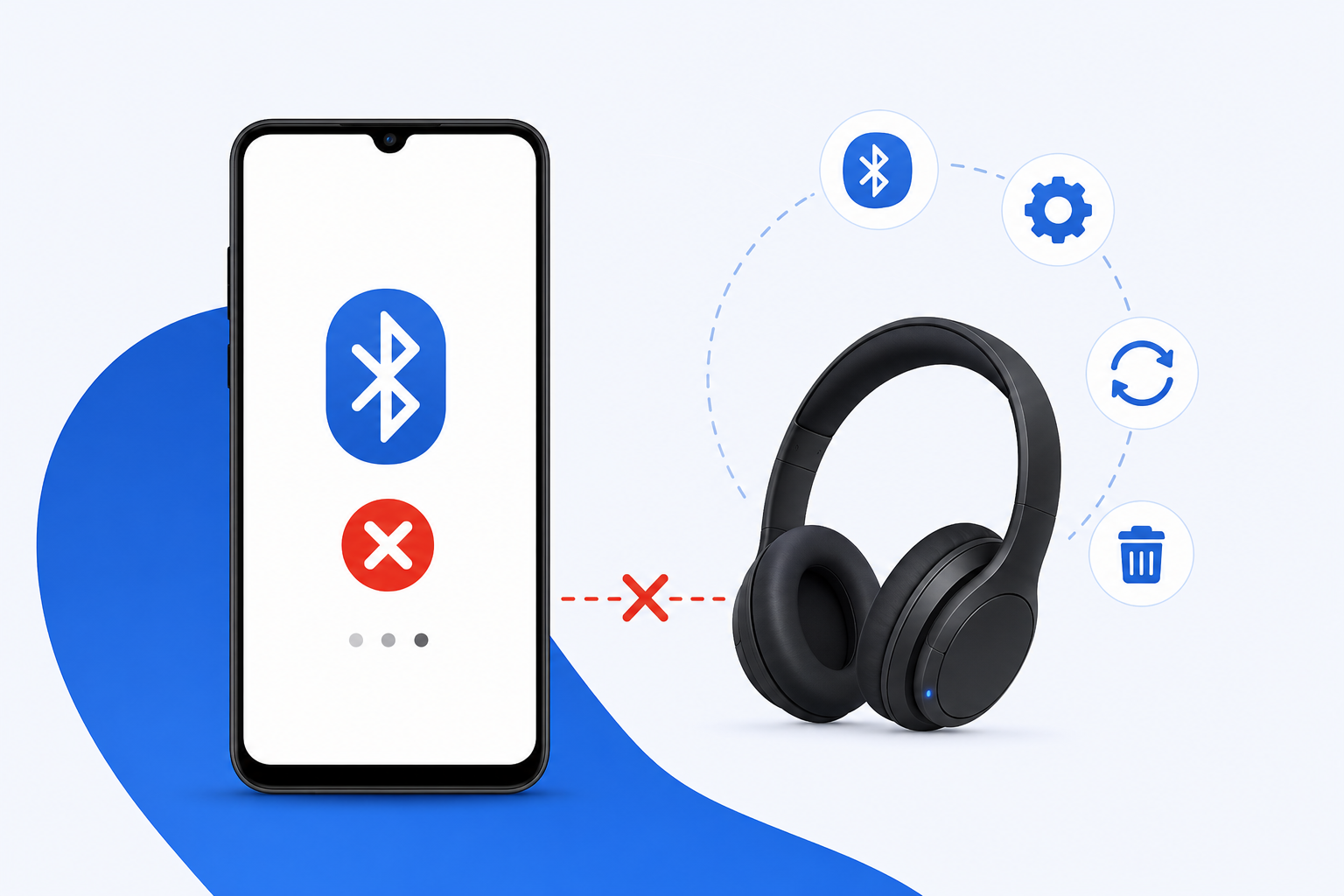
Bluetooth headphones not connecting সমস্যাটি সাধারণত হেডফোন নষ্ট হওয়ার কারণে হয় না। বেশির ভাগ ক্ষেত্রে হেডফোন pairing mode-এ না থাকা, অন্য ডিভাইসের সঙ্গে আগে থেকেই যুক্ত থাকা, চার্জ কমে যাওয়া, ফোনে পুরোনো pairing record জমে থাকা অথবা ভুল audio output নির্বাচিত থাকাই আসল কারণ।
তাই Bluetooth earbuds not connecting, wireless headphones not connecting কিংবা Bluetooth headset not connecting—যে লক্ষণই দেখা দিক, কয়েকটি ধাপ ঠিক ক্রমে অনুসরণ করলে সংযোগ ফিরে পাওয়ার সম্ভাবনা বেশি। Bluetooth headphones not connecting ঠিক করতে প্রথমে সহজ কারণগুলো বাদ দেওয়াই বুদ্ধিমানের কাজ।
Table of Contents
- হেডফোন কেন কানেক্ট হচ্ছে না
- Bluetooth headphones not pairing-এর দ্রুত সমাধান
- Android, iPhone ও Windows 11-এ কানেক্ট করার নিয়ম
- Connected দেখালেও শব্দ না আসার সমাধান
- বারবার সংযোগ বিচ্ছিন্ন হলে করণীয়
- কখন reset বা service প্রয়োজন
- Frequently Asked Questions
Bluetooth Headphones Not Connecting হওয়ার সাধারণ কারণ
একটি Bluetooth pairing problem বোঝার সবচেয়ে সহজ উপায় হলো ফোন ও হেডফোন—দুটিকে আলাদা করে পরীক্ষা করা। Bluetooth headphones not connecting হলে এই ছোট পরীক্ষাই অপ্রয়োজনে বিভিন্ন সেটিং reset করা থেকে বাঁচায়।
একই হেডফোন অন্য ফোনে যুক্ত হলে সমস্যা মূল ডিভাইসের সেটিংসে থাকার সম্ভাবনা বেশি। আবার অন্য কোনো হেডফোনও আপনার ফোনে কানেক্ট না হলে Bluetooth service, permission বা software-এর দিকে নজর দিতে হবে।
হেডফোন pairing বা discovery mode-এ নেই
শুধু হেডফোন চালু করলেই সব মডেল নতুন ফোনে দেখা যায় না। নতুন সংযোগের জন্য Bluetooth pairing mode বা device discovery mode চালু করতে হয়। সাধারণত power অথবা Bluetooth button কয়েক সেকেন্ড চেপে রাখলে indicator light দ্রুত blink করে। তবে সঠিক পদ্ধতি ব্র্যান্ড ও মডেলভেদে আলাদা।
how to put Bluetooth headphones in pairing mode প্রশ্নটির একক উত্তর নেই। কোনো মডেলে power button, কোনো মডেলে case-এর button, আবার touch-control earbuds-এ দুই পাশের sensor ধরে রাখতে হয়। Indicator light বা voice prompt না পাওয়া পর্যন্ত manual-এর নির্দেশনা অনুসরণ করুন।
Apple এবং Microsoft—দুই প্রতিষ্ঠানই নতুন Bluetooth accessory যুক্ত করার আগে সেটিকে discoverable বা pairing mode-এ রাখার পরামর্শ দেয়।
অন্য ডিভাইসের সঙ্গে হেডফোন যুক্ত আছে
হেডফোন আগে laptop, tablet, TV বা অন্য ফোনে ব্যবহৃত হলে সেটি ওই previously paired device-এ স্বয়ংক্রিয়ভাবে ফিরে যেতে পারে। তখন নতুন ফোনে নাম দেখা গেলেও connection সম্পন্ন হয় না। পুরোনো ডিভাইসের Bluetooth বন্ধ করে পুনরায় চেষ্টা করুন।
কিছু মডেলে multipoint connection থাকে, অর্থাৎ একই সময়ে দুটি ডিভাইসের সংযোগ ধরে রাখতে পারে। কিন্তু সব হেডফোনে এই সুবিধা নেই। একটি single-device headset অন্য ডিভাইসে active থাকলে নতুন connection প্রত্যাখ্যান করতে পারে।
Apple-এর troubleshooting নির্দেশনায় accessory অন্য ডিভাইসে paired থাকলে সেখান থেকে unpair করে আবার iPhone বা iPad-এর সঙ্গে সংযোগের চেষ্টা করতে বলা হয়েছে।
চার্জ কম অথবা charging contact ময়লা
Bluetooth headphones low battery অবস্থায় indicator light জ্বললেও pairing সম্পন্ন নাও হতে পারে। দুই পাশের earbud এবং charging case সম্পূর্ণ চার্জ করুন।
True wireless earbuds-এর charging contact ধুলো, তেল বা ঘামে ঢেকে থাকলে একটি earbud চার্জ নাও নিতে পারে। শুকনা ও নরম কাপড় দিয়ে contact পরিষ্কার করুন। ভেজা অবস্থায় earbuds case-এ রাখবেন না।
দূরত্ব, দেয়াল ও wireless interference
ফোন থেকে বেশি দূরে থাকা, মাঝখানে দেয়াল, crowded Wi-Fi environment অথবা কাছাকাছি অনেক wireless device থাকলে Bluetooth range issue দেখা দিতে পারে।
USB 3.0 device, router এবং অন্যান্য 2.4 GHz signal Bluetooth interference তৈরি করতে পারে। প্রথম pairing-এর সময় ফোন ও হেডফোনকে এক মিটারের মধ্যে রাখুন।
Microsoft-এর নির্দেশনায় Bluetooth accessory-কে PC-এর কাছাকাছি রাখা এবং USB 3.0 device থেকে সম্ভাব্য interference পরীক্ষা করার কথা বলা হয়েছে।
পুরোনো pairing record বা profile conflict
ফোনে সংরক্ষিত link information এবং হেডফোনের stored profile এক না হলে Bluetooth connection failed message আসতে পারে। এ ক্ষেত্রে forget Bluetooth device ব্যবহার করে পুরোনো নাম মুছে নতুন করে pair করা কার্যকর প্রাথমিক সমাধান।
একই নামের দুটি headphone entry থাকলে উভয়টি remove করে নতুন করে pairing mode চালু করুন।
Compatibility, firmware বা operating system সমস্যা
পুরোনো headphone, নতুন LE Audio device অথবা বিশেষ codec-নির্ভর model-এ Bluetooth compatibility সমস্যা হতে পারে। Headphone app থাকলে firmware update দিন এবং ফোনের software update পরীক্ষা করুন।
Bluetooth headphones won’t connect after update হলে restart, re-pair এবং app update দিয়ে শুরু করুন। সরাসরি factory reset করার প্রয়োজন নেই।
Bluetooth Headphones Not Pairing: দ্রুত ১০টি সমাধান
১. Bluetooth Headphones Not Connecting হলে চার্জ পরীক্ষা করুন
প্রথমে হেডফোন, charging case এবং ফোন বা laptop-এর charge নিশ্চিত করুন। চার্জ দেওয়ার পর হেডফোন বন্ধ করে আবার চালু করুন।
Case-এ earbuds রাখার পর charging indicator জ্বলছে কি না দেখুন। একটি earbud charge না নিলে pairing বা stereo synchronization ব্যর্থ হতে পারে।
২. সঠিক pairing mode চালু করুন
how to put Bluetooth headphones in pairing mode অনুযায়ী model-specific button sequence ব্যবহার করুন। Indicator দ্রুত blink করলে সাধারণত হেডফোন discoverable হয়েছে।
কয়েক সেকেন্ড পর pairing mode বন্ধ হয়ে গেলে আবার চালু করতে হবে। শুধু স্থির আলো জ্বলা মানেই device discoverable নয়।
৩. Bluetooth বন্ধ করে আবার চালু করুন
ফোনের Settings থেকে Bluetooth off করে প্রায় ১০ সেকেন্ড পর on করুন। শুধু quick panel নয়, মূল Bluetooth settings page খুলে available device scan করুন।
airplane mode চালু থাকলে সেটি বন্ধ আছে কি না দেখুন। Google-এর Android troubleshooting-এ Bluetooth off/on, paired status পরীক্ষা এবং ডিভাইস restart করার পরামর্শ দেওয়া হয়েছে।
৪. অন্য connected device বিচ্ছিন্ন করুন
Laptop, TV, tablet ও পুরোনো ফোনের Bluetooth সাময়িকভাবে বন্ধ করুন। এতে headphone নতুন ডিভাইসের সঙ্গে wireless audio connection স্থাপন করার সুযোগ পাবে।
বিশেষ করে একই হেডফোন অফিসের laptop এবং ব্যক্তিগত ফোনে ব্যবহার করলে পুরোনো device connection আটকে রাখতে পারে।
৫. Forget করে নতুন করে pair করুন
Device list-এ headphone-এর পাশে settings icon চাপুন এবং Forget বা Unpair নির্বাচন করুন। এরপর pairing mode চালু করে আবার connect করুন।
Bluetooth headphones not showing up হলে available devices refresh করুন। Headphone reset না করে আগে পুরোনো pairing record মুছে দেখুন। Google-এর নির্দেশনাতেও saved device ভুলে গিয়ে accessory list refresh করে পুনরায় pair করার ধাপ রয়েছে।
৬. ফোন ও হেডফোন restart করুন
Temporary service glitch থাকলে সাধারণ restart-এই সমাধান হতে পারে। headphones won’t connect to phone সমস্যায় phone restart এবং headphone power cycle একসঙ্গে করলে আটকে থাকা connection release হতে পারে।
৭. App, firmware এবং operating system update দিন
Headphone-এর companion app থাকলে pending firmware update সম্পন্ন করুন। ফোন বা computer-এর operating system-এ update থাকলে সেটিও install করুন।
Update চলাকালে headphone বন্ধ করবেন না এবং app background থেকে সরিয়ে দেবেন না।
৮. Audio profile ও permission পরীক্ষা করুন
Android-এ paired device settings খুলে Media audio চালু আছে কি না দেখুন। কোনো app Bluetooth permission চাইলে প্রয়োজন অনুযায়ী অনুমতি দিন।
প্রয়োজনীয় media audio permission বন্ধ থাকলে call profile কাজ করলেও music শোনা যাবে না। Google-এর Android নির্দেশনায় connected accessory-এর জন্য Media audio option চালু রাখতে বলা হয়েছে।
৯. Cache, driver বা network settings ঠিক করুন
Android-এ model ও version অনুযায়ী Bluetooth cache clear করার option থাকতে পারে। Windows-এ Device Manager থেকে Bluetooth driver update দিন।
সব সাধারণ ধাপ ব্যর্থ হলে network settings reset ব্যবহার করা যায়। তবে এতে saved Wi-Fi network, password এবং কিছু network preference মুছে যেতে পারে। Apple-ও অন্যান্য সমাধান ব্যর্থ হওয়ার পর network settings reset করার পরামর্শ দেয়।
১০. হেডফোন reset করুন
reset Bluetooth headphones পদ্ধতি model-specific। অনেক earbuds-এ case button ধরে রাখতে হয়; over-ear model-এ power এবং volume button combination থাকতে পারে।
how to reset Bluetooth headphones জানতে product manual অনুসরণ করুন। ভুল combination ধরে রাখলে শুধু power off হতে পারে, সম্পূর্ণ reset নাও হতে পারে।
Bluetooth Headphones Not Connecting to Android
Bluetooth headphones not connecting to Android হলে Settings > Connected devices > Pair new device খুলুন। Android-এ Bluetooth headphones not connecting সমস্যার প্রথম পরীক্ষা এখান থেকেই শুরু করা উচিত।
হেডফোন pairing mode-এ রেখে নাম দেখা পর্যন্ত অপেক্ষা করুন। নাম দেখা গেলে tap করে pair করুন। Google-এর Android troubleshooting-এ Bluetooth off/on, paired status পরীক্ষা, discoverable mode নিশ্চিত করা এবং দুই ডিভাইস restart করার পরামর্শ দেওয়া হয়েছে।
how to connect Bluetooth headphones to Android
- হেডফোন চার্জ করে pairing mode চালু করুন।
- Android Settings > Connected devices > Pair new device খুলুন।
- Available devices থেকে headphone-এর নাম নির্বাচন করুন।
- Pair request এলে অনুমোদন দিন।
- Device settings-এ Media audio চালু রাখুন।
Why won’t my headphones connect to Android?—পুরোনো pairing, disabled Nearby devices permission, অন্য ফোনে active connection অথবা system glitch সাধারণ কারণ।
Bluetooth device not found দেখালে location permission প্রয়োজন কি না, Bluetooth scanning চালু আছে কি না এবং device discoverable কি না পরীক্ষা করুন।
How do I clear my Bluetooth cache?
Android version ও manufacturer অনুযায়ী menu আলাদা হতে পারে। Settings > Apps > Show system apps-এর মধ্যে Bluetooth service পাওয়া গেলে Storage & cache option দেখা যেতে পারে।
Option না থাকলে জোর করে third-party cleaner ব্যবহার করবেন না। Restart, Forget Device অথবা Reset Wi-Fi, mobile & Bluetooth তুলনামূলক নিরাপদ পদক্ষেপ।
Bluetooth Headphones Not Connecting to iPhone
Bluetooth headphones not connecting to iPhone হলে Settings > Bluetooth খুলে Bluetooth on রাখুন এবং headphone discovery mode-এ দিন। iPhone-এ Bluetooth headphones not connecting থাকলে Control Center-এর বদলে মূল Settings page থেকেই pairing করুন।
Apple-এর নির্দেশনা অনুযায়ী accessory আগে অন্য ডিভাইসে paired থাকলে সেখান থেকে unpair করে আবার iPhone-এর সঙ্গে চেষ্টা করা উচিত।
how to connect Bluetooth headphones to iPhone
- Settings > Bluetooth খুলুন।
- Headphone-কে discoverable করুন।
- Other Devices-এর নিচে নাম এলে tap করুন।
- PIN চাইলে manual-এ দেওয়া code ব্যবহার করুন।
- Connected দেখালে Control Center থেকে audio destination পরীক্ষা করুন।
Why won’t my earbuds connect to my iPhone?—earbuds অন্য Apple বা non-Apple device-এ connected থাকতে পারে, battery কম হতে পারে অথবা pairing record corrupted হতে পারে।
Headphone-এর পাশে ⓘ চাপুন, Forget This Device নির্বাচন করুন এবং পুনরায় pair করুন।
Reset Network Settings শেষের দিকের পদক্ষেপ। When should I reset network settings? Restart, Bluetooth toggle, Forget This Device, headphone reset এবং iOS update কাজ না করলে এটি বিবেচনা করুন।
Bluetooth Headphones Not Connecting to Laptop
Bluetooth headphones not connecting to laptop হলে laptop-এ Bluetooth hardware আছে কি না এবং Bluetooth adapter enabled কি না দেখুন। Laptop-এ Bluetooth headphones not connecting থাকলে driver এবং discovery setting দুটিই যাচাই করা জরুরি।
Windows 11-এ Settings > Bluetooth & devices থেকে Bluetooth on করে Add device নির্বাচন করুন।
how to connect Bluetooth headphones to Windows 11
- Headphone pairing mode চালু করুন।
- Start > Settings > Bluetooth & devices খুলুন।
- Add device > Bluetooth নির্বাচন করুন।
- Headphone-এর নাম নির্বাচন করে connection সম্পন্ন করুন।
- System > Sound > Output থেকে headphone নির্বাচন করুন।
Microsoft-এর troubleshooting অনুযায়ী device charged, powered on এবং PC-এর range-এর মধ্যে থাকা জরুরি। Device না দেখালে Bluetooth devices discovery setting Advanced করা যেতে পারে।
Windows update-এর পর সমস্যা শুরু হলে driver compatibility পরীক্ষা করুন। Driver পুরোনো হলে Device Manager থেকে update বা reinstall করুন। Microsoft-এর নির্দেশনায় update ব্যর্থ হলে Bluetooth driver reinstall এবং সাম্প্রতিক সমস্যায় Roll Back Driver ব্যবহারের ধাপও রয়েছে।
Bluetooth Headphones Connected but No Sound
Bluetooth headphones connected but no sound মানে pairing সফল হলেও sound route সঠিক নয়। এ অবস্থাটি সাধারণ Bluetooth headphones not connecting সমস্যা থেকে আলাদা, কারণ connection তৈরি হয়েছে কিন্তু audio route ভুল।
Phone volume এবং headphone volume দুটিই বাড়িয়ে দেখুন। এরপর current output phone speaker নয়, headphone নির্বাচিত আছে কি না নিশ্চিত করুন।
Bluetooth headphones connected but sound coming from phone হলে Android-এর paired device settings-এ Media audio চালু করুন। iPhone-এ Control Center-এর AirPlay বা audio output menu থেকে headphone বেছে নিন।
Windows-এ audio output settings খুলে Output device হিসেবে headphone নির্বাচন করুন। Microsoft-ও connected-but-no-sound সমস্যায় সঠিক Bluetooth output বেছে নেওয়ার পরামর্শ দেয়।
Bluetooth audio not working থাকলে music app বন্ধ করে আবার খুলুন, কোনো call active আছে কি না দেখুন এবং headphone hands-free mode-এ আটকে আছে কি না পরীক্ষা করুন।
অন্য একটি app বা local audio file চালিয়ে source-specific সমস্যা আলাদা করুন।
Bluetooth Headphones Keep Disconnecting
Bluetooth headphones keep disconnecting হলে প্রথমে ফোন কাছে এনে পরীক্ষা করুন। Pocket, bag, দেয়াল অথবা শরীরও কখনো signal path দুর্বল করতে পারে। তারপর অন্য paired device, battery level এবং power-saving settings পরীক্ষা করুন।
why do my Bluetooth headphones keep disconnecting সমস্যার আরও কয়েকটি কারণ হলো outdated driver, crowded wireless environment, multipoint switching এবং unstable firmware।
Windows-এ power-saving setting, পুরোনো driver অথবা temporary system glitch connection drop ঘটাতে পারে। Microsoft এ ধরনের সমস্যায় driver update এবং device restart করার পরামর্শ দেয়।
Connection বারবার ভাঙলে এই ক্রম অনুসরণ করুন:
- Headphone ও source device full charge করুন।
- অন্য device-এর Bluetooth বন্ধ করুন।
- Forget করে re-pair করুন।
- Headphone app ও firmware update করুন।
- Wi-Fi router বা USB hub থেকে একটু দূরে যান।
- অন্য phone বা computer-এ পরীক্ষা করুন।
Bluetooth Headphones Not Showing Up in Available Devices
Bluetooth headphones not showing up in available devices হলে headphone আসলে discoverable কি না সেটিই আগে দেখুন। আলো স্থির থাকলে সেটি শুধু powered on হতে পারে; দ্রুত blink সাধারণত pairing state বোঝায়। তবে modelভেদে light pattern আলাদা।
Device list refresh করুন, headphone phone-এর খুব কাছে আনুন এবং অন্য device-এর connection বন্ধ করুন।
একই নামে দুটি entry দেখা গেলে পুরোনো entry forget করে নতুনটি নির্বাচন করুন। তবুও Bluetooth headphones not showing up থাকলে headphone reset এবং second-device test করুন।
কখন Factory Reset বা Service প্রয়োজন?
সব সাধারণ ধাপ ব্যর্থ হওয়ার আগে factory reset headphones করবেন না। Bluetooth headphones not connecting দেখলেই reset করলে মূল কারণ শনাক্ত করা কঠিন হয়ে যায়।
Reset করলে saved pairings, custom EQ এবং touch-control preference মুছে যেতে পারে। Manual অনুযায়ী reset করার পর প্রথমে একটি মাত্র phone-এর সঙ্গে pair করুন।
নিচের লক্ষণ থাকলে hardware service বিবেচনা করুন:
- Headphone charge নিচ্ছে না বা indicator জ্বলছে না।
- একাধিক phone ও computer কোনোটিই device detect করছে না।
- Pairing button বা touch sensor কাজ করছে না।
- একটি earbud case-এ রেখেও sync হচ্ছে না।
- পানি, পড়ে যাওয়া বা physical damage-এর পর সমস্যা শুরু হয়েছে।
- Reset-এর পরও কয়েক সেকেন্ডের মধ্যে connection ভেঙে যাচ্ছে।
Frequently Asked Questions
Why are my Bluetooth headphones not pairing?
Headphone pairing mode-এ নেই, অন্য device-এ connected, charge কম অথবা পুরোনো pairing profile conflict করছে—এই চারটি কারণ আগে পরীক্ষা করুন।
Why can’t my phone find my Bluetooth headphones?
Headphone discoverable করুন, phone-এর Bluetooth refresh করুন এবং দুই device কাছে রাখুন। অন্য connected phone বা laptop-এর Bluetooth বন্ধ করুন।
How do I reset my Bluetooth headphones?
Manual-এ দেওয়া button combination ব্যবহার করুন। Brandভেদে power, volume অথবা charging-case button নির্দিষ্ট সময় ধরে রাখতে হয়।
How do I put my headphones in pairing mode?
সাধারণত power বা Bluetooth button কয়েক সেকেন্ড ধরে রাখতে হয়। Earbuds-এর ক্ষেত্রে case খুলে case button অথবা touch panel ব্যবহার করতে হতে পারে।
Why are my headphones connected but not playing sound?
Wrong output device, Media audio বন্ধ, app glitch অথবা volume mute থাকতে পারে। Phone, iPhone বা Windows-এর output menu থেকে headphone নির্বাচন করুন।
Why do my Bluetooth headphones keep disconnecting?
Low battery, বেশি দূরত্ব, interference, multipoint switching, পুরোনো firmware অথবা Windows power-saving setting connection drop করতে পারে।
Can Bluetooth headphones connect to two devices?
শুধু multipoint-supported model একই সময়ে দুটি device-এর connection রাখতে পারে। সব Bluetooth headphone এই feature সমর্থন করে না।
Do Bluetooth headphones need to be charged to pair?
হ্যাঁ, pairing-এর জন্য পর্যাপ্ত power প্রয়োজন। Battery খুব কম থাকলে headphone চালু হলেও discovery বা connection স্থিতিশীল নাও হতে পারে।
why won’t my Bluetooth headphones connect
Headphone pairing mode, charge, অন্য device-এর active connection এবং phone-এর saved pairing record পরীক্ষা করুন। এরপর restart, forget এবং re-pair করুন।
why are my Bluetooth headphones not connecting to my phone
Phone-এর Bluetooth on থাকলেও headphone discoverable না হলে নাম দেখা যাবে না। অন্য device থেকে disconnect করে phone-এর list refresh করুন।
how to fix Bluetooth headphones not pairing
Charge, pairing mode, Bluetooth toggle, old pairing removal, restart, firmware update এবং headphone reset—এই ক্রমে এগোলে অপ্রয়োজনীয় settings reset এড়ানো যায়।
শেষ কথা
Bluetooth headphones not connecting সমস্যা সমাধানে সবচেয়ে গুরুত্বপূর্ণ বিষয় হলো একসঙ্গে সব setting বদলে না ফেলা। প্রথমে charge ও pairing mode, এরপর অন্য device-এর connection, তারপর Forget and Re-pair পরীক্ষা করুন।
প্রয়োজন হলে phone restart, firmware update, cache অথবা driver fix করুন। একটি second-device test দ্রুত বলে দেয় সমস্যা headphone-এ, নাকি phone বা laptop-এ।
Bluetooth headphones not connecting অব্যাহত থাকলে product manual ও manufacturer support অনুসরণ করুন। Physical damage অথবা charging failure থাকলে authorised service নেওয়াই নিরাপদ।
আরও পড়ুন: Wireless earbuds নিরাপদে পরিষ্কার করার নিয়ম এবং সঠিক Bluetooth headphones বেছে নেওয়ার গাইড।
অফিশিয়াল সহায়তা: Google Android Bluetooth Help, Apple Bluetooth Accessory Help এবং Microsoft Bluetooth Troubleshooting।