

Why Does My Laptop Overheat and How to Fix It?
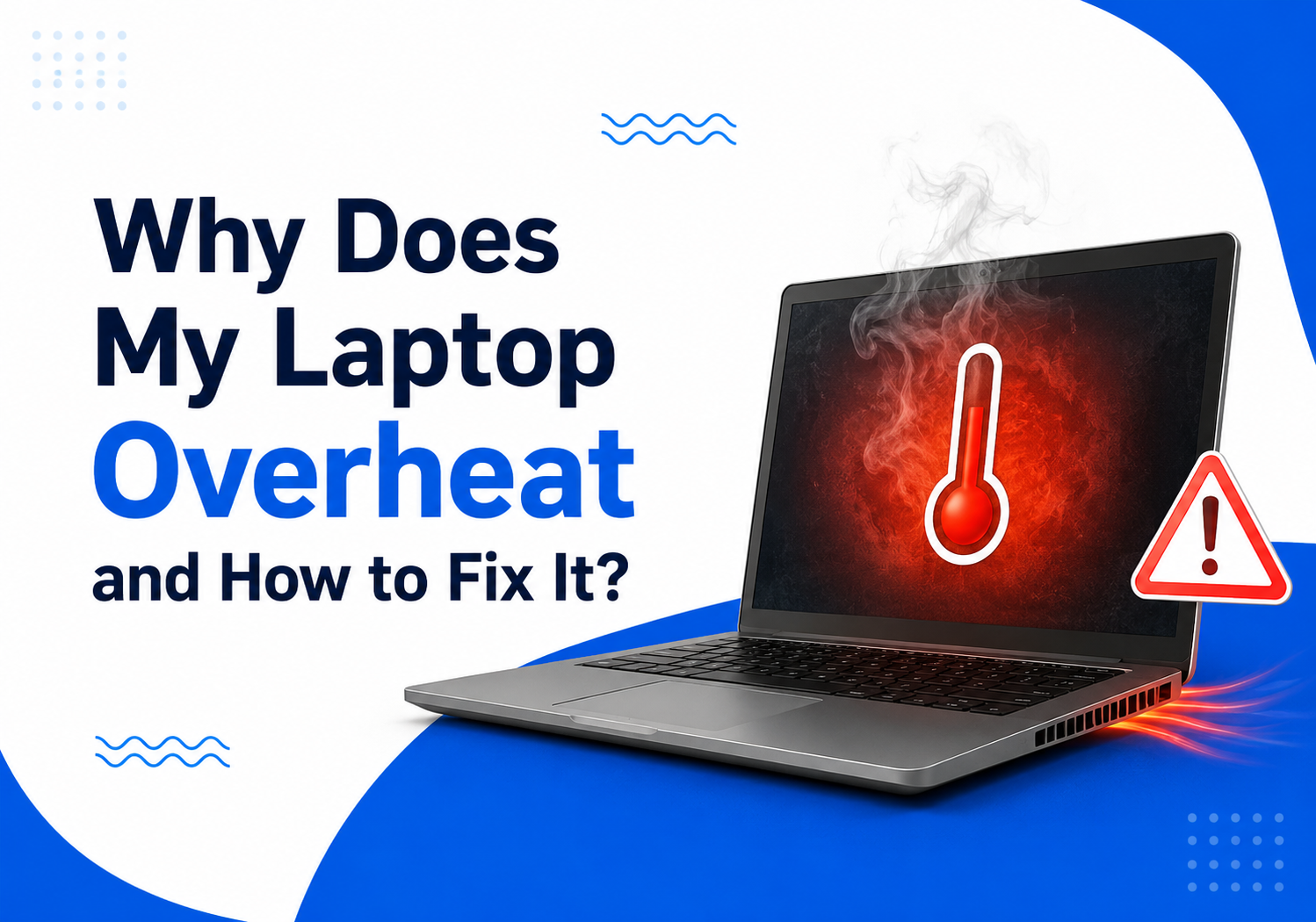
Why does my laptop overheat — এই question অনেক laptop user-এর common problem। আপনি যদি দেখেন laptop গরম হয়ে যাচ্ছে, fan অনেক শব্দ করছে, performance slow হয়ে যাচ্ছে, battery দ্রুত শেষ হচ্ছে অথবা laptop হঠাৎ shutdown হচ্ছে, তাহলে overheating problem হতে পারে।
Laptop একটু warm হওয়া normal, কারণ CPU, GPU, battery এবং internal components কাজ করার সময় heat তৈরি করে। কিন্তু excessive heat দীর্ঘ সময় চলতে থাকলে performance কমে যেতে পারে এবং hardware damage হওয়ার risk বাড়তে পারে।
এই complete Bangla-English laptop troubleshooting guide-এ আমরা জানবো why is my laptop getting hot, overheating-এর main causes, gaming overheating solution, fan cleaning, thermal paste replacement, cooling tips এবং practical fixes।
Why Does My Laptop Overheat? Quick Answer
Why does my laptop overheat এর main কারণ হলো poor airflow, dust buildup, high CPU usage, heavy applications, outdated drivers, damaged cooling system এবং improper laptop usage.
Common causes:
- Laptop fan-এ dust জমা
- Air vents blocked হওয়া
- Gaming বা heavy software use
- Too many background apps
- Old thermal paste
- High room temperature
- Low-quality charger
- Malware or unwanted processes
- Hardware cooling failure
যদি laptop নিয়মিত 80°C–90°C+ temperature এ চলে, তাহলে overheating fix করা জরুরি।
Laptop Temperature Normal Range কত?
Laptop temperature usage অনুযায়ী change করে।
| Usage | Normal Temperature |
|---|---|
| Idle | 35°C–50°C |
| Browsing | 45°C–65°C |
| Office Work | 50°C–70°C |
| Gaming | 70°C–85°C |
| Heavy Rendering | 80°C–90°C |
কিছু gaming laptop high load-এ বেশি temperature handle করতে পারে, কিন্তু constant extreme heat ভালো নয়।
Laptop temperature normal range maintain করা performance এবং hardware lifespan-এর জন্য important।
Common Reasons: Why Is My Laptop Getting Hot?
1. Dust Inside Laptop Fan
Laptop overheating-এর সবচেয়ে common কারণ হলো dust buildup।
সময় যাওয়ার সাথে সাথে:
- Cooling fan dirty হয়
- Heat sink block হয়
- Airflow কমে যায়
- Hot air বের হতে পারে না
ফলে CPU এবং GPU temperature বেড়ে যায়।
Solution:
Regular laptop fan cleaning করুন।
2. Blocked Air Vent
অনেকে bed, pillow বা sofa-এর উপর laptop ব্যবহার করেন। এতে নিচের ventilation hole block হয়ে যায়।
Result:
- Fresh air ঢুকতে পারে না
- Hot air বের হতে পারে না
- Laptop দ্রুত গরম হয়
Solution:
Laptop সবসময় hard flat surface-এর উপর ব্যবহার করুন।
3. Heavy Software and Background Apps
অনেক সময় unnecessary apps CPU usage বাড়িয়ে দেয়।
Examples:
- Browser-এর অনেক tab
- Video editing software
- Games
- Cloud sync apps
- Background updates
CPU বেশি কাজ করলে বেশি heat তৈরি হয়।
Fix:
Windows Task Manager খুলে:
- High CPU apps check করুন
- Unnecessary programs close করুন
- Startup apps disable করুন
4. Laptop Overheating While Gaming
Laptop overheating while gaming সবচেয়ে common issue, কারণ gaming-এর সময় CPU এবং GPU maximum performance দেয়।
High temperature-এর কারণ:
- High graphics settings
- Poor airflow
- Dusty fan
- Old thermal paste
- Weak cooling system
Gaming overheating কমানোর জন্য:
- Graphics settings reduce করুন
- FPS limit করুন
- Cooling pad ব্যবহার করুন
- Vent block করবেন না
- Background apps বন্ধ করুন
How to Fix Laptop Overheating?
Fix 1: Clean Laptop Fan and Air Vents
Laptop fan cleaning guide follow করলে অনেক সময় temperature significantly কমে।
Steps:
- Laptop shutdown করুন
- Charger disconnect করুন
- Air vents locate করুন
- Compressed air দিয়ে dust remove করুন
- External vents clean করুন
যদি laptop open করার experience না থাকে, professional cleaning better।
Fix 2: Improve Airflow
Simple cooling tips:
- Laptop stand ব্যবহার করুন
- Hard surface ব্যবহার করুন
- Bed-এর উপর laptop রাখবেন না
- Side vents block করবেন না
- Room temperature কম রাখুন
Proper airflow laptop overheating solution-এর সবচেয়ে easy method।
Fix 3: Close Unnecessary Background Apps
Windows user হলে:
- Press Ctrl + Shift + Esc
- Open Task Manager
- Check CPU usage
- Close unnecessary apps
Browser tabs, launchers, auto-updater এবং unused software বন্ধ করুন।
Fix 4: Update Drivers and Operating System
Outdated drivers performance issue তৈরি করতে পারে।
Update করুন:
- Graphics driver
- Chipset driver
- BIOS
- Windows updates
Updated software better power management এবং heat control করতে পারে।
Fix 5: Replace Thermal Paste
CPU এবং heatsink-এর মধ্যে thermal paste heat transfer improve করে।
সময় গেলে thermal paste শুকিয়ে যেতে পারে।
Signs:
- Laptop কয়েক বছর পুরনো
- Fan constantly loud
- High temperature even after cleaning
- Sudden shutdown
Thermal paste replacement করলে cooling performance improve হতে পারে।
Laptop Cooling Pad Worth It?
অনেক user প্রশ্ন করেন: laptop cooling pad worth it?
Answer: Depends.
Cooling pad useful যদি:
- Gaming laptop use করেন
- Laptop bottom খুব গরম হয়
- Long gaming session করেন
- Airflow improve করতে চান
কিন্তু cooling pad internal dust বা broken fan problem fix করতে পারে না।
Best result:
Laptop cleaning + cooling pad + proper airflow
How to Reduce Laptop Heat During Gaming
Gaming laptop cool রাখার tips:
Lower Graphics Settings
Ultra settings সবসময় necessary না।
Reduce করুন:
- Shadow quality
- Ray tracing
- Resolution
- Background effects
Use Performance Mode Carefully
Gaming laptop-এর performance mode বেশি power consume করে এবং heat বাড়াতে পারে।
Balanced mode অনেক সময় better temperature দেয়।
External Cooling Setup
Use:
- Laptop stand
- Cooling pad
- External keyboard
- Better room ventilation
Long gaming session-এর জন্য এগুলো helpful।
Can Overheating Damage a Laptop?
হ্যাঁ, continuous overheating laptop-এর জন্য harmful হতে পারে।
Possible problems:
- Battery health কমে যাওয়া
- CPU performance throttling
- Unexpected shutdown
- Fan damage
- Motherboard stress
- Reduced lifespan
Modern laptops protection system ব্যবহার করে, কিন্তু repeated overheating ignore করা উচিত না।
Laptop Maintenance Tips for Long-Term Performance
Follow these laptop maintenance tips:
Monthly
- Remove unnecessary files
- Check startup apps
- Clean external vents
Every 6–12 Months
- Deep fan cleaning
- Check temperature
- Update drivers
Every Few Years
- Thermal paste replacement
- Battery health check
- Internal cleaning
Regular maintenance laptop performance stable রাখে।
Best Laptop Cooling Solution: Practical Guide
Best solution depends on the problem.
| Problem | Solution |
| Dusty fan | Fan cleaning |
| Blocked airflow | Laptop stand |
| Gaming heat | Cooling pad + settings adjustment |
| Old laptop | Thermal paste replacement |
| High CPU usage | Close background apps |
| Software issue | Driver update |
When Should You Contact a Technician?
Professional help নিন যদি:
- Laptop automatically shutdown হয়
- Fan unusual noise করে
- Burning smell আসে
- Temperature always 90°C+
- Laptop suddenly freezes
- Cleaning-এর পরেও heat problem থাকে
Hardware cooling system damage হলে professional repair দরকার হতে পারে।
Final Verdict: How to Fix Laptop Overheating?
Why does my laptop overheat — এর answer সাধারণত hardware maintenance এবং usage habits-এর মধ্যে থাকে।
Most overheating problems can be solved by:
- Cleaning laptop fan
- Improving airflow
- Closing unnecessary apps
- Updating drivers
- Using cooling accessories
- Replacing old thermal paste
একটা laptop শুধু powerful processor দিয়ে ভালো থাকে না; proper cooling এবং regular maintenance equally important।
আপনি যদি gaming করেন, video editing করেন বা heavy software use করেন, তাহলে temperature monitoring এবং cooling setup আরও important।
Smart laptop usage মানে শুধু performance maximize করা না; heat control করে device-এর lifespan এবং reliability maintain করাই best solution।
FAQ: Why Does My Laptop Overheat?
Why does my laptop overheat so quickly?
Laptop overheating usually happens because of dust, blocked airflow, high CPU usage, gaming load, old thermal paste or cooling system problems.
How do I stop my laptop from overheating?
Clean the fan, improve airflow, close unnecessary apps, update drivers, use a cooling pad and maintain proper laptop ventilation.
Is it normal for a laptop to get hot?
Yes, laptops become warm during heavy use. However, constant high temperature is not normal and should be fixed.
Why does my laptop overheat while gaming?
Gaming uses CPU and GPU heavily, creating more heat. Poor airflow, dust, high graphics settings and weak cooling can increase temperature.
Can overheating damage my laptop?
Yes. Long-term overheating can reduce battery life, cause performance throttling and damage internal components.
How do I clean my laptop fan?
Use compressed air for external cleaning. For internal cleaning, opening the laptop requires proper tools and knowledge.
Does a cooling pad reduce laptop temperature?
Yes, a cooling pad can improve airflow and slightly reduce temperature, especially during gaming, but it cannot fix internal hardware issues.
When should I replace laptop thermal paste?
Usually after several years or when temperatures remain high even after cleaning the fan and improving airflow.
What is the best laptop cooling solution?
The best solution is a combination of fan cleaning, proper airflow, updated software, thermal paste maintenance and cooling accessories.